White balance, you say? We care about this why? Well, white balance makes the difference between your kids having a nice healthy glow or a funky neon yellow glow when photographed at functions in the school gym or the mall or other places with flourescent light. It can make them look a little gray/blue or near cardiac arrest in shaded areas or near north facing windows on cloudy days. It can ruin birthday party pictures.
Got your attention? Good, because this is an easy fix.
Cameras come equipped with various white balance settings to suit your setting. By default it is on auto and some do pretty darn well there in many situations. But again, giving your camera a little hint goes a long way to better pictures. For instance, telling it you are in the shade will warm up your image by toning down the blues and filtering with yellows. If you tell it you are in a room lit by incandescent lights it can filter with blue instead and so on. Here is why…
Light is not white.
In fact, the light illuminating your scene might be very cool (lots of blue) or very, very warm (lots of gold). Your camera knows this. It knows specifically the ratios of different colors from various light sources. What your camera may not know, is which light source you are using at that moment. That makes for images with varying degrees of color cast. You have two options to fix this.
1.) Set your white balance in camera. You usually can choose between auto, sunny, cloudy, shade, tungsten/incandescent, flourescent, and flash at minimum. Auto isn't a bad place to start (it automatically adjusts to flash when shooting in auto mode for instance) unless you are in a gym or indoors on an overcast day. (If you use a dslr in manual mode you can even set a custom white balance by photographing a white or gray card but that is another story entirely.)
You may not have time to mess around with the camera or might be using your iphone etc. No problem because…
2.) You can fix color casts pretty effectively in photo editing programs.
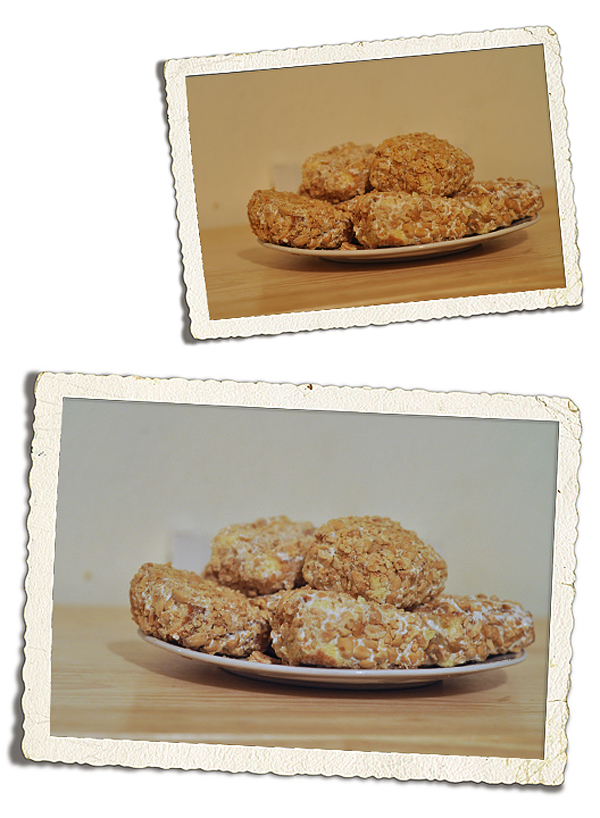
Real quick – some examples of both. The first picture is of a plate of Alannah's Blarney Stones on St. Pat's. It was taken indoors at night with the lights on causing a really yellow cast. Setting the camera again took care of that.
The next image was nearly a toss-er. It was Abbie first thing in the morning by a north facing window on a rainy day. It was way underexposed and left her so blue she looked ashen. No problem. Free editors like Picmonkey.com to the rescue!
It works like this. Upload your image. Go to 'colors' and then 'neutral picker'. Drag the eye dropper to something that ought to be white in your picture. In this case I chose a stripe on her nightgown. The nightgown was not a pure white itself so the editor over adjusted initially. I used the slider to bring the temperature back down a bit.
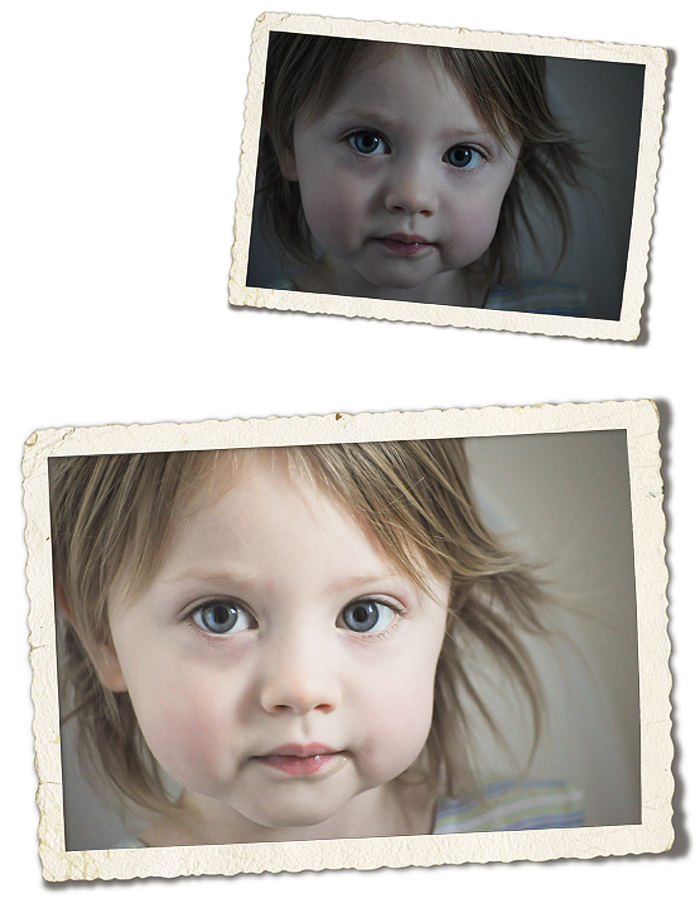
I also hit 'exposure' and slid the 'brighten' slider considerably, which is another post. All that to say, don't delete pictures you love that didn't turn out as well as you hoped until you try a little post-processing fix. Most people have some pictures from sports auditoriums, museums, or bowling alleys they can experiment with. If you are one of them, consider that your Weekend Challenge.
 Starry Sky Journal